The First Practice Management (FPM Core) partnership integration is available for our GP Suite customers only.
Set up is split into 2 parts:
1 - Blue Stream Academy actions
2 - FPM Core Actions (License Agreement and Staff Synchronisation)
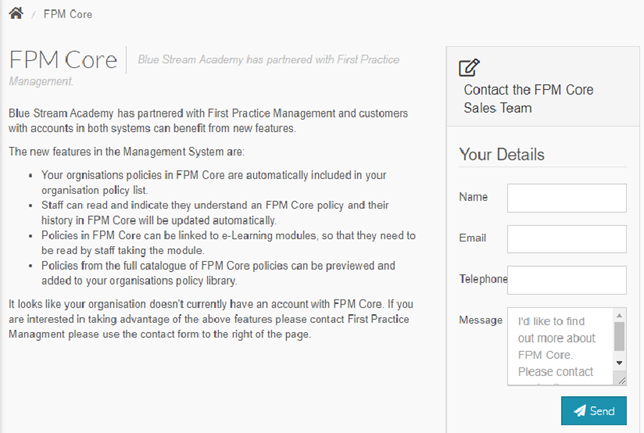
If an active Blue Stream Academy account is not yet using First Practice Management, then a System Administrator can select the First Practice Management tab to view the FPM Core information and fill out the contact FPM Core form, if they would like to receive further information and a quote from FPM.
Step 1
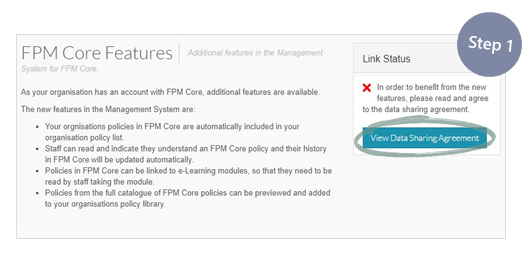 If an active Blue Stream Academy account is already a member of First Practice Management, they can view the features available by selecting First Practice Management and then About FPM Core.
This page will also prompt System Administrators to view and accept a data sharing agreement between Blue Stream Academy and First Practice Management.
To accept the agreement, select View Data Sharing Agreement, this will open a new page.
Step 2
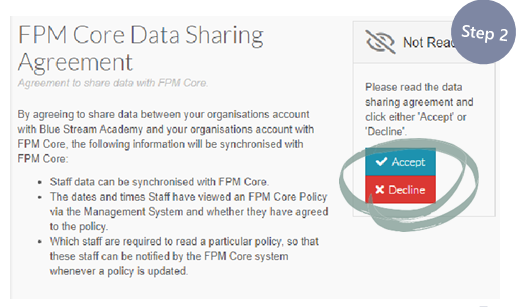 The agreement can be read and the System Administrator can either Accept or Decline. By accepting the data sharing agreement, the FPM Core policies can be accessed and downloaded via each user’s Blue Stream Academy account.
Alternatively, a System Administrator can select First Practice Management and then Data Sharing Agreement to read and accept the data sharing agreement between Blue Stream Academy and First Practice Management.
Step 3
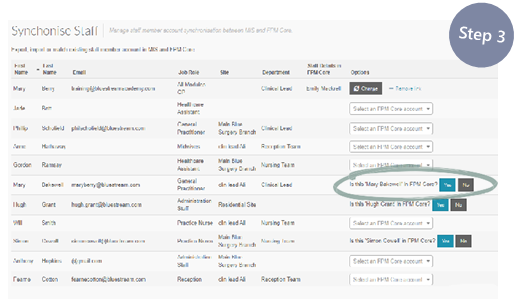 The next step is for a System Administrator to synchronise their users by selecting First Practice Management and then Synchronise Staff.
Here a System Administrator can see all available users on their Blue Stream Academy account and link them to their FPM Core account.
A System Administrator will need to do this manually. Suggestions will appear from matching email addresses.
Step 4
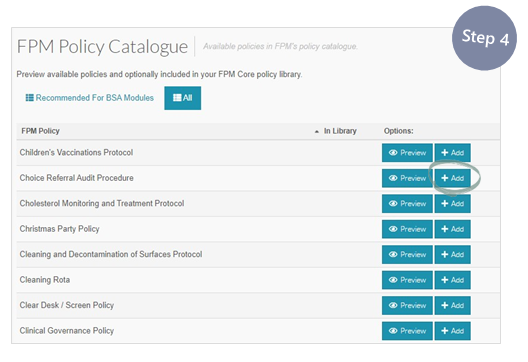 A System Administrator can see all available policies on FPM Core and policies that have been recommended for our Blue Stream Academy modules within First Practice Management > Policy Catalogue.
Within the FPM Policy Catalogue, a System Administrator can click Preview to view any of the policies and +Add to add any of these policies to their FPM Core account to edit and use.
Please Note: Policies can only be edited within the FPM Core account. If a policy is edited, any changes will be automatically applied to the policy within Blue Stream Academy’s FPM Policy Library on the Management of Information System (MIS).
Step 5
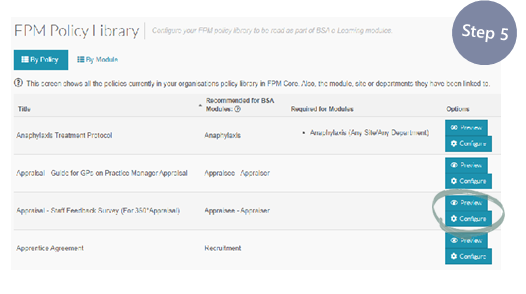 Any policies that have been added to the FPM Core account will also appear within the MIS, these can be viewed by going to Management > Policy > FPM Policy Library.
This page shows the policies that have been added to the FPM Core account, which eLearning modules they are recommended for, as well as the module, site, or department they have been linked to. The policy can be viewed by selecting Preview. Selecting Configure will open a new page where the policy can be linked to modules, sites, and departments.
Step 6
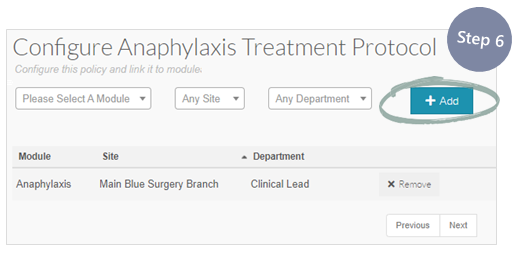 To configure a policy, a module can be selected from the
Please Select A Module dropdown box.
The policy can be linked to Any Site or Any Department
in your organisation. Once happy with the choices, select
+Add to save.
Step 7
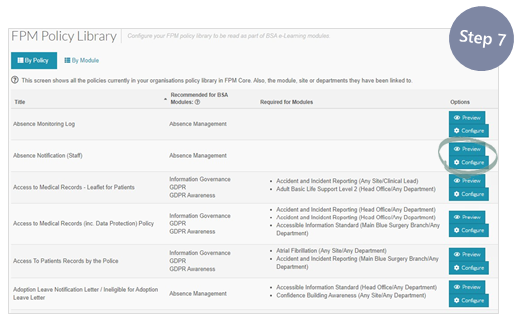 Once the policies have been configured users can open, read and agree to them from their Blue Stream Academy account within Policies & Documentation > View Policies.
They can also be viewed by selecting the Policies and Documentation button on the main menu of any linked module.
Once a user has read and agreed to the policies the evidence will appear within their FPM Core account.
FPM Core
In FPM Core, you will need to access the Data Sharing Agreement and Agree to sync your FPM Core account with Blue Stream.
In FPM Core, select Admin > License Agreements
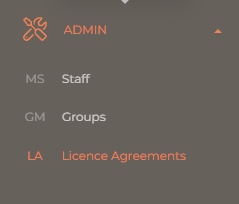
Hover over the Data Sharing Agreement Policy and select the Reading icon on the right:
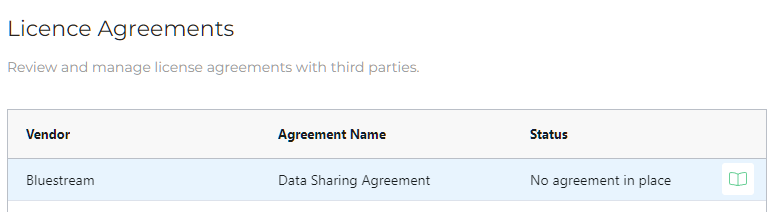
Press Accept at the top if you agree:

The license Agreement Status will change to Accepted:

Staff Synchronisation
Staff Synchronisation allows you to map staff in your FPM Core profile to staff in Blue Stream Academy.
Select Admin > Staff Synchronisation to access the tool:
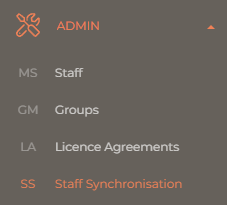
You'll see a list of staff set up in FPM Core.
Select Change to map the staff member to the correct staff member in Blue Stream Academy.

Staff Synchronisation only shows if you Accept the Data Sharing Agreement.