Prerequisites:
In order to compete this action you need to log in to the editor. See the "Logging In" help article for details
Notes:
- You can only have 20 pages added to the website. If you do not see "Add a new page" then you need to Move, Consolidate or Delete existing content.
- Pages added under Further Information do not have tabs.
| You can easily create a new page on your website. Login to the editor and then, at the bottom of your "Further Information" you will see an option called "--- Add a new page ---". Click this and it will create a new, blank page for you. | 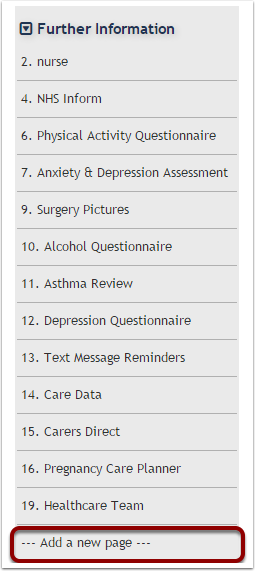 |
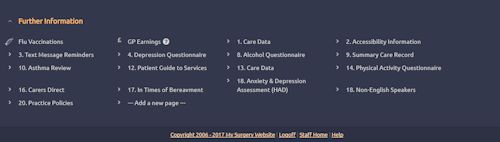
On Responsive templates you will find Further Information at the bottom of the page.
A new page will open
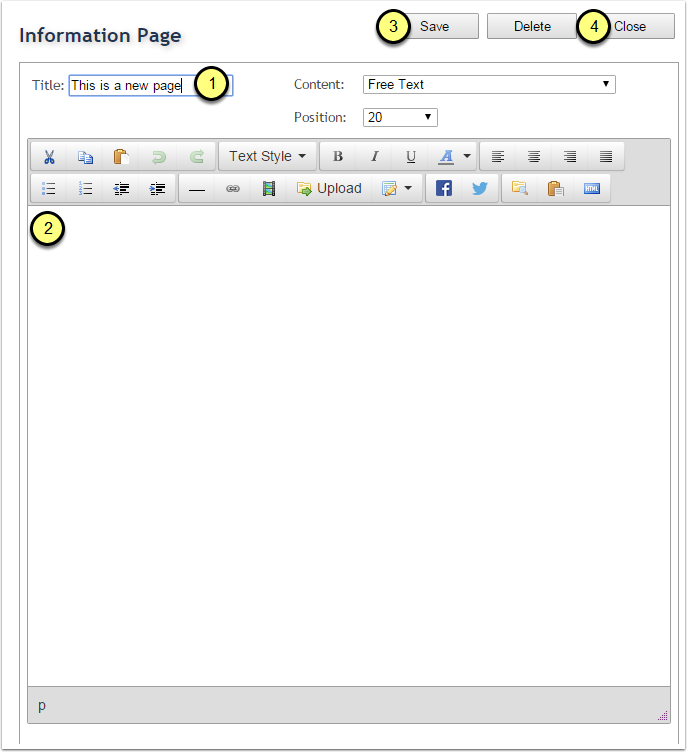
- Give the page a title
- Enter your content
- Save the page
- Close the page
Deleting A Further Information Page
Removing a page from the "Further Information" menu is straightforward. Go to the page you wish to delete.
When logged in, you will see a "delete" button. Simply press this and you will see it removes all the content from the page. Now press the "save" button. Your page has now been deleted.