To upload a document, please log into the website editor. Once logged in, click onto the '+ Add Content Row' option at the bottom of the page your are wanting to add the document to (If you are wanting to add the link to an existing Information Widget, you can simply edit the existing widget)

A new row will be added to the page. If you hover over the '+' icon on the left hand side of the row and select ' Add Widget' a menu will appear on the left hand side displaying all the available widgets.

Please select the 'Information' widget:

Please note: Each row can hold up to 3 separate widgets so if you are wanting to add the Information Widget to and existing row, this can be done also.
If you hover over the widget and click 'Edit' the Information Widget will be displayed and allow you to edit the widget.

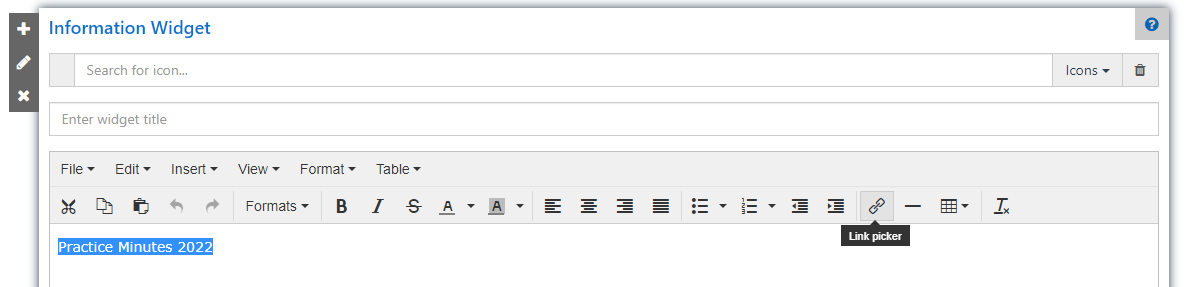
If you type the word you are wanting to display for the link (e.g. Practice Minutes 2022) then highlight this text and click onto the 'Link Picker' option on the toolbar.
A menu will appear on the left hand side. Please select the 'Files' option.
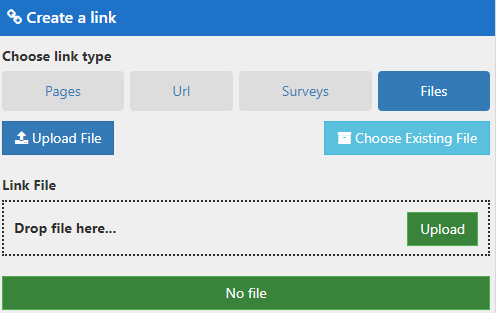
Clicking onto the 'Upload' option will allow you to browse your computer for the file. Alternately, you can drag and drop the file into the 'Drop file here...' section. Once the document has been added, please select 'Save'.
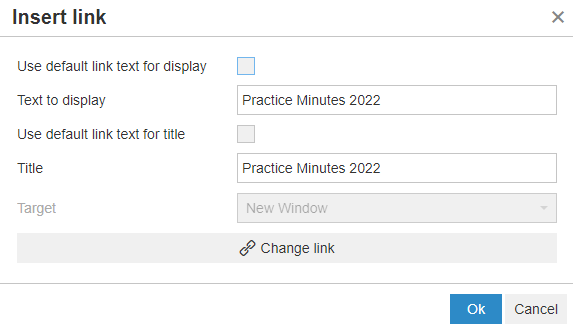
A window will appear displaying the title you are wanting displayed on the website for this file. You can change the name displayed here if needed by updating the 'Text to display' field. If everything is ok, please select 'Save'.