How do I upload a file?
Please note: this article is only applicable to websites built after November 2018.
This article covers how to upload a file to use on your website.
In this article:
- Considerations/Prerequisites
- Detail
- Dos and Don’ts
- Common Problems/Mistakes
- Common Questions/FAQs
- Related Articles/See Also
Considerations/Prerequisites
Detail
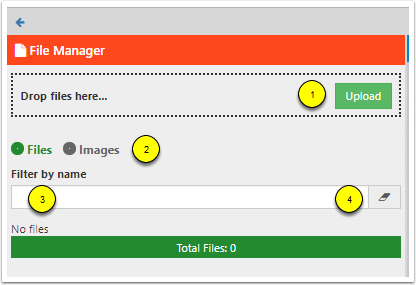
Log in to the editor and click the grey arrow in the top right hand corner to open the side menu. Click Manage Files in the orange section.
- Either
– Drag and drop the required file(s) onto the area that says “Drop files here…” .
or
– Click the Upload button and in the window that opens select the file(s) and click Open. - Your files will be uploaded.
- You will now see your files in the list. You can filter the list by file or image using the selector buttons (2). You can filter the list by name by typing a word into the Filter by name field (3). Click the eraser button (4) to remove the filter.
Dos and Don’ts
- Crop and resize images before uploading to minimise loading time and make them more easily managed on your website.
- Upload files as PDF documents wherever possible as these don’t require special software to open. They are also less easily edited by users.
Common Problems/Mistakes
Common Questions/FAQs
Related links/See Also
File Manager Overview
How do I add an image?
Keywords/meta tags
document, file, image, upload, manage