How do I add a Twitter feed?
Please note: this article is only applicable to websites built after November 2018.
This article covers how to add the Twitter widget to your website to display a link to your page and a feed.
In this article:
- Considerations/Prerequisites
- Detail
- Dos and Don’ts
- Common Problems/Mistakes
- Common Questions/FAQs
- Related Articles/See Also
Considerations/Prerequisites
The Twitter widget automatically updates when you add content on Twitter so once you have added it to your website you should only ever need to edit it if your Twitter username changes (for instance, if your practice changes name).
Detail
- Choose the row you want to add the Twitter widget to or add a new row if needed.
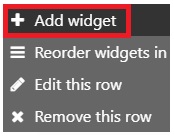
- Click the + sign in the grey bar on the left of the row then click Add Widget.
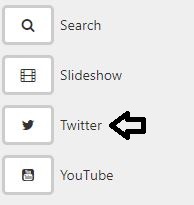
- The side menu will open up. Select Twitter from the list of widgets presented.
- The Twitter widget will be added to the first available space in the row. (See “Using Widgets” to find out how to re-order the row.)
- Hover over the Twitter widget and click the EDIT link that appears.
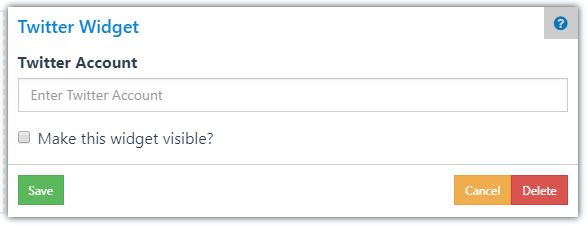
- Enter your Twitter username then click the Make this widget Visible checkbox and click Save.
Dos and Don’ts
Common Problems/Mistakes
My widget isn’t displaying my Twitter feed."
Check your Twitter username is correct.
My widget is not showing when I leave the editor.
Make sure that the “Make this widget visible?” checkbox is ticked in the properties for that widget.
Common Questions/FAQs
How do I know my Twitter username?
Visit your Twitter page and copy the username from the address bar in your browser. This is the bit after www.twitter.com/.
So for example, if your Twitter address is
“www.twitter.com/mysurgerywebsite”
your username is
“mysurgerywebsite”
Related links/See Also
Using widgets
Rows and Widgets - Overview
Homepage set-up
Keywords/meta tags
widget, display, twitter, feed, link