How do I add a contact details page?
Please note: this article is only applicable to websites built after November 2018.
This article will show you how to create a contact details page on your website.
In this article:
- Considerations/Prerequisites
- Detail
- Dos and Don’ts
- Common Problems/Mistakes
- Common Questions/FAQs
- Related Articles/See Also
Considerations/Prerequisites
Contact details are set in FPMS Pro and the web page is automatically populated with them.
Detail
Set up or check your contact details
- Log in to FPMS/FPSM Pro and go to Website Tools > Sites.
- To add a site click the green + icon.
- To edit existing details click the pencil icon in the appropriate site box.
- A new page will open where you can insert or alter the practice name and address.
- Use the "IsPrimary" selector to choose if this is the main site or a branch site.
- Use the latitude and longitude fields to specify map coordinates. The map on the contact page (optional) will use these.
- The table at the bottom shows other information stored. Click the "+ New Contact" button to add a new phone number, fax number or email address making sure you add the number or email in the Value box.
- In the table, click the Edit link to alter a contact number or email or click the Delete link to remove that contact.
- When you have finished click the green Save button (disk icon) in the top right hand corner.
Add the contact page
- Open the Page Manager by clicking the grey arrow icon in the top left and corner. A side menu will appear. The Page Management tools are found under the green section.
- In the sidebar list go to the Page Management section (highlighted green) and click Manage Pages. A new sidebar window will open.
- Click the "+ New Page" button.
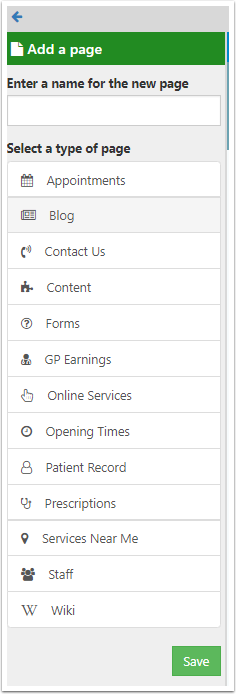
- Enter a name for the new page in the field that appears
- Under Select a type of page choose Contact Us. Scroll to the bottom and click “Save” to create the new page.
- Your new page will open in the main window.
- Hover over the Site list widget and click the EDIT link that appears.
- A new sidebar will open. Use the tick boxes to choose which site's contact details to display.
- Select a map display style from the drop-down list and click Save.
- Your new page will automatically be populated with your practice's contact information.
Add a contact form
- Underneath the contact details hover over the Form widget and click the EDIT link that appears.
- A new sidebar will open. Use the drop-down list to choose a form to add.
- Use the Show/Hide selector to choose whether or not the form should appear on the page.
- Click Save.
Dos and Don’ts
- Ensure the page is appropriately named.
Common Problems/Mistakes
My details are not displaying correctly or some details are missing.
Log in to FPMS/FPMS Pro and set the site details (as detailed above)
Common Questions/FAQs
Why can’t I find the page on my website in normal view?
The page will need to be linked to a menu. See Menu Manager Overview.
Related links/See Also
How to add a new page
Page Manager Overview
Menu Manager Overview
Keywords/meta tags
contact, details, information, phone, address, email, map, form