Please note: this article is only applicable to websites built after November 2018.
This article covers:
- How to add a PPG sign up form
- How to view PPG contacts in FPMS and the demographic data on each contact profile
- How to email your PPG list and easily filter contacts via the contacts tool
- How to add/remove PPG minutes via the PPG tool in FPMS and what that looks like on the website
- How to add a contact us button/form to the PPG widget
In this article:
- Considerations/Prerequisites
- Detail
- Dos and Don’ts
- Common Problems/Mistakes
- Common Questions/FAQs
- Related Articles/See Also
Considerations/Prerequisites
You need to be logged into the editor mode in order to open the site to make changes.
You need to be logged in to FPMS Pro.
Detail
How to add a PPG sign up form
- You need to be logged into the editor mode in order to open the site to make changes.
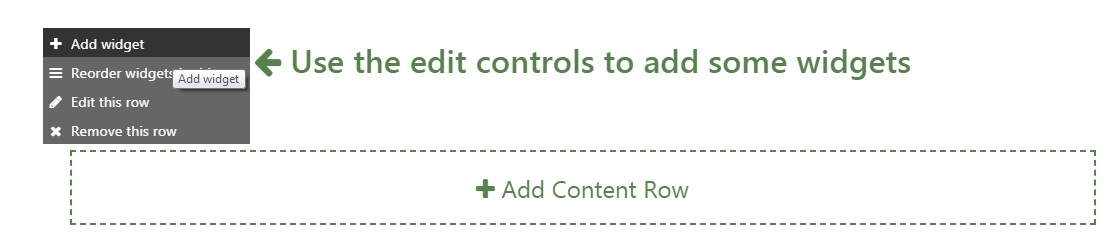
- Choose the row you want to add to or add a new row if needed.
- Click the + sign in the grey bar on the left of the row then click Add Widget.
-
You will be presented with the available widgets on the editor panel on the left hand side. Select Patient Practice Group from this menu in order to add the PPG widget.
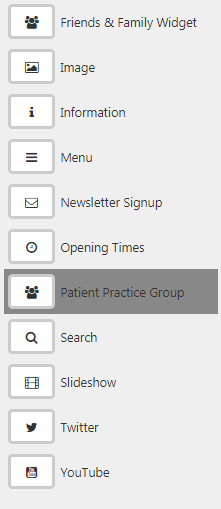
- The Practice Patient Group widget will be added to the first available space in the row. (See “Using Widgets” to find out how to re-order the row.)
-
Once the widget has been added, you will need to ensure the widget is set to be visible. Hover over the Practice Patient Group widget and click the EDIT link that appears. Click the Make this widget Visible checkbox and click Save.See the example below, making sure to also select save.

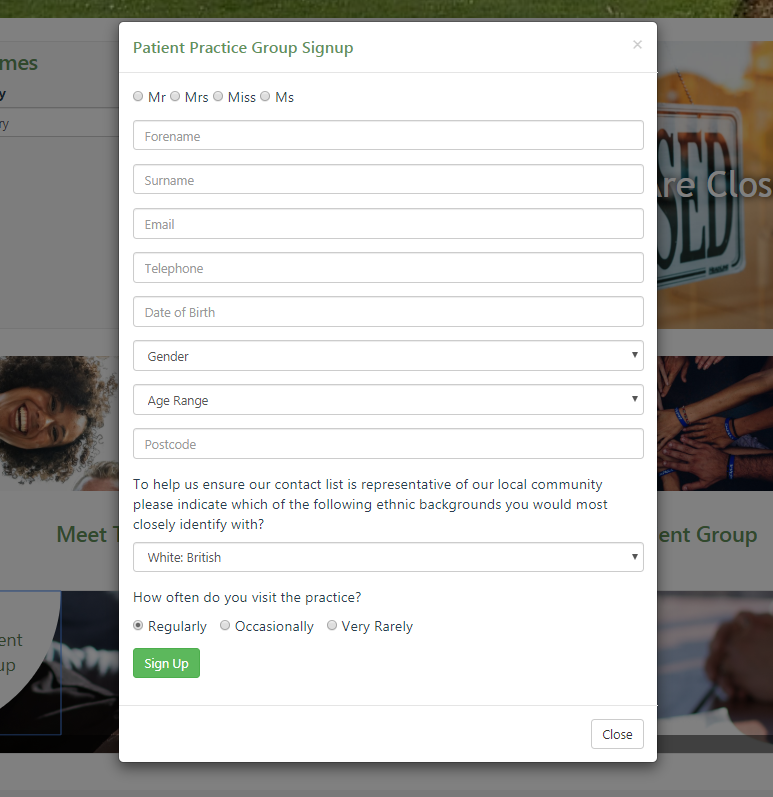
The widget will be live on the website. Clicking the widget will open up the form and allow patients to sign up to the PPG.
How to view PPG contacts in FPMS and the demographic data on each contact profile
- Log in to FPMS, click Tools in the menu and go to Contacts.
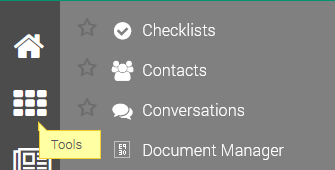
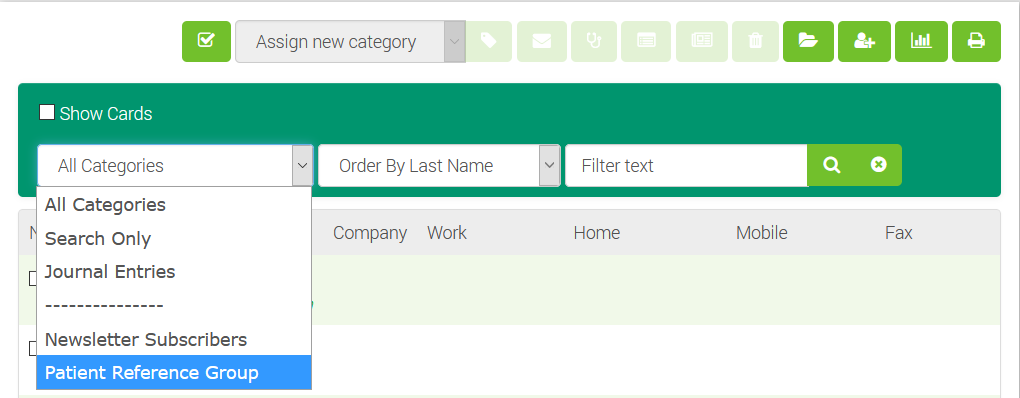
- To see the Patient Group list of contacts click the All Categories drop-down and select Patient Reference Group. Your list will now only show contacts who have signed up to the patient group.
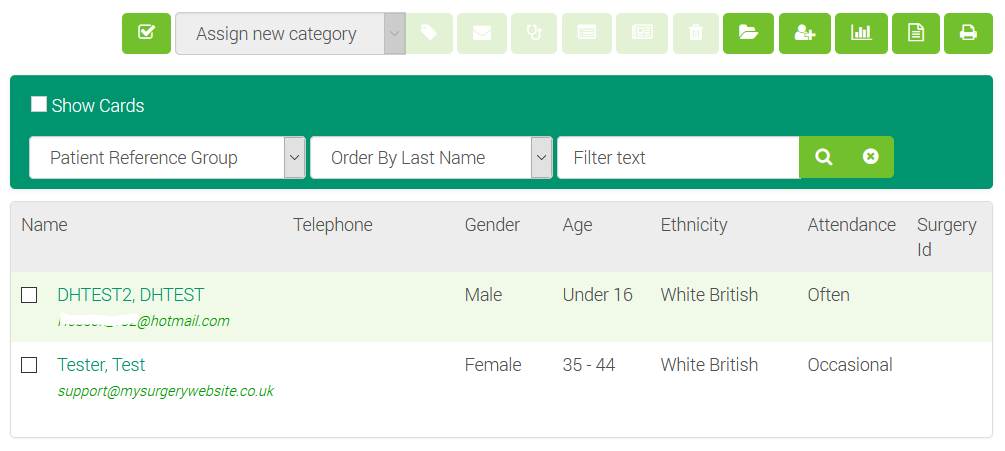
- Your patient group contacts will be displayed in the list along with their contact details and basic demographic data.
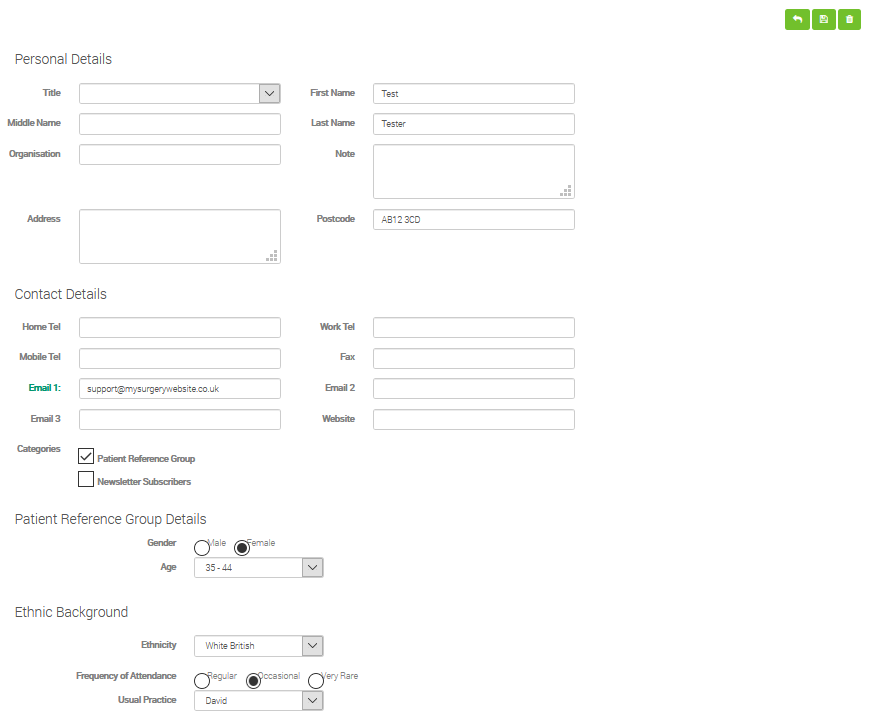
- Click a persons name to edit their data, remove them from the patient group list (click the disk button to save when done) or delete them from the system altogether by clicking the trash can button).
How to email your PPG list and easily filter contacts via the contacts tool
- Log in to FPMS, click Tools in the menu and go to Contacts.
- To see the Patient Group list of contacts click the All Categories drop-down and select Patient Reference Group. Your list will now only show contacts who have signed up to the patient group.
- Select members to email by ticking the checkbox nect to their name or click the button with the tick in a box to select all.
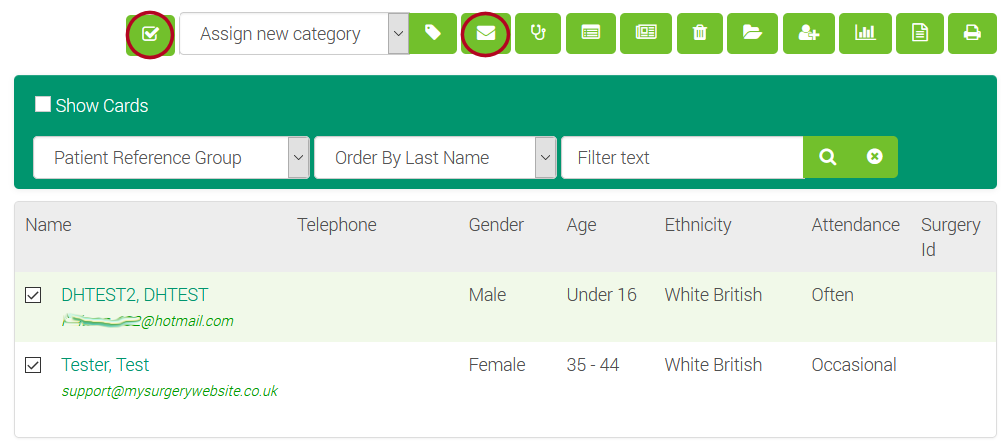
- To search for a specific person enter all or part of their name in the Filter text box then click the magnifier button.
- To send an email to the selected members click the envelope button.
- Enter the subject and message content and add an attachment if you wish by clicking the Browse button.
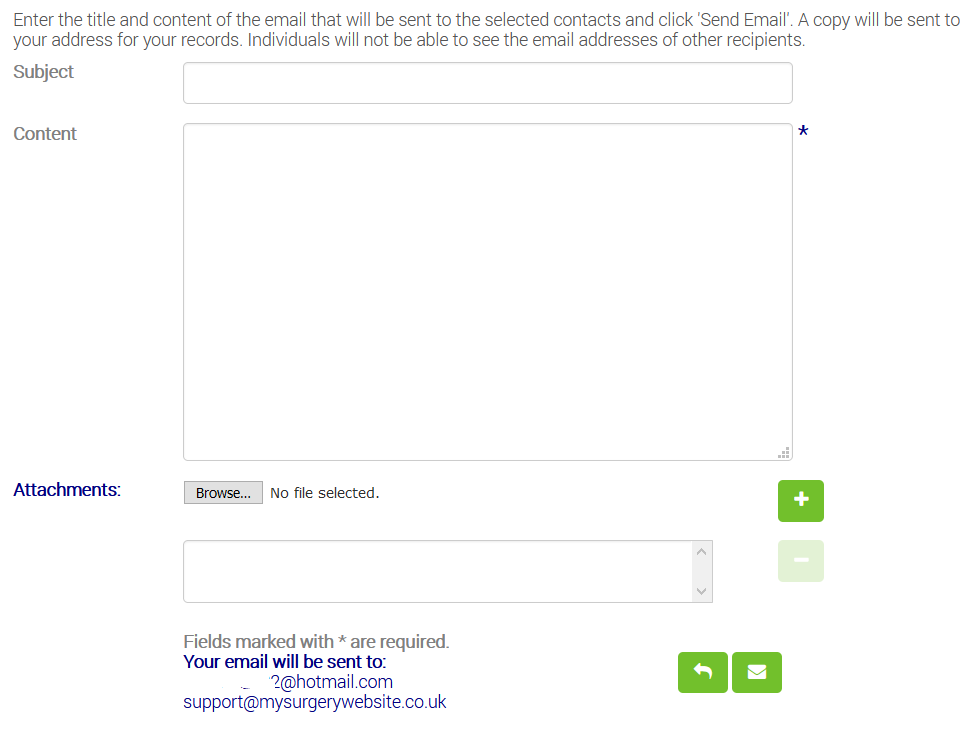
- A list of the email addresses this will be sent to appears at the bottom. Click the envelope button to send.
How to add/remove PPG minutes via the PPG tool in FPMS and what that looks like on the website
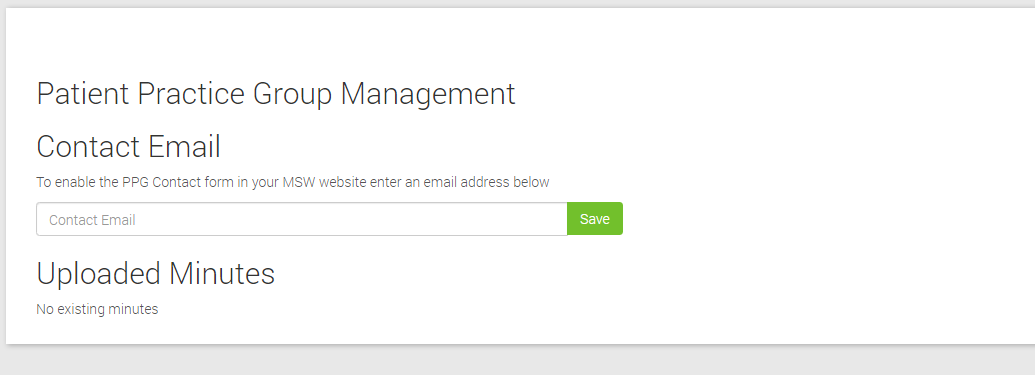
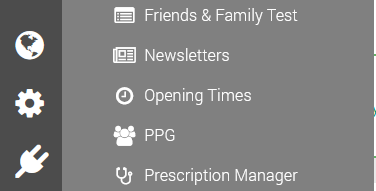
- Log in to FPMS, click Website Tools in the menu and go to PPG.
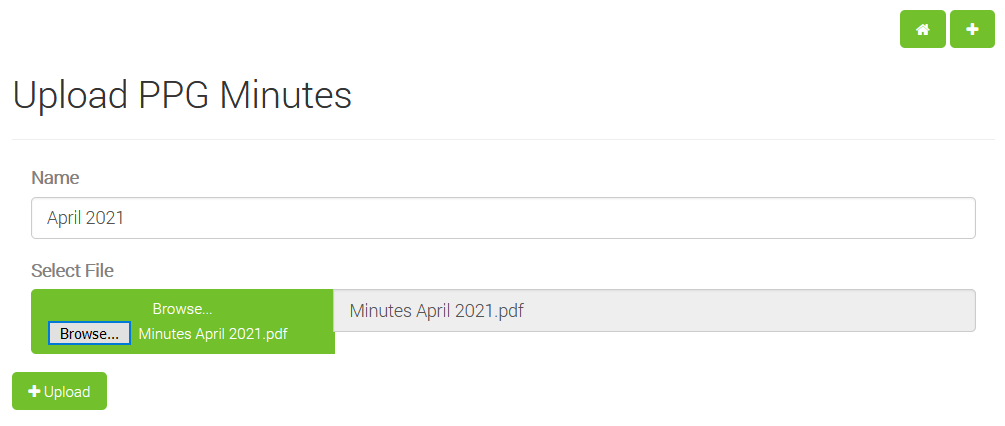
- Click the green + sign on the right hand side to upload documents/minutes.

- Give the file a name (eg. Autumn 2018) in the blank Name field.
- Use the Browse button next to Select File to browse for the minutes file to upload.
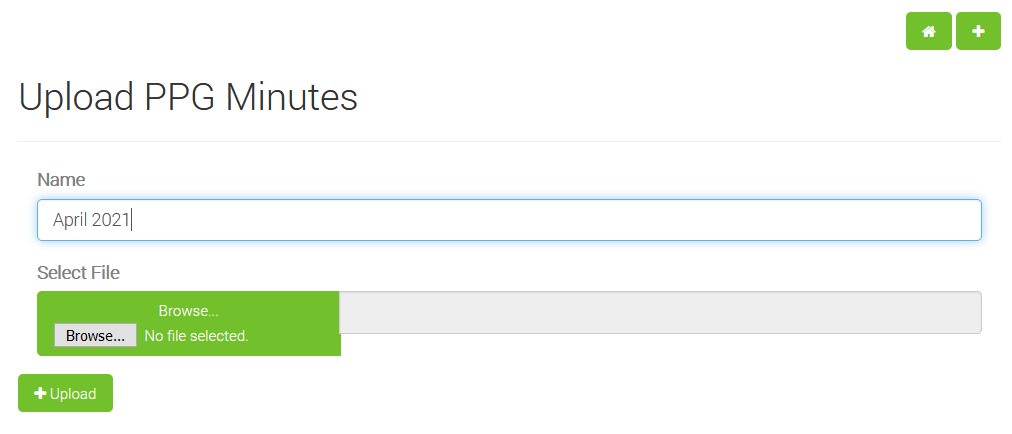
- Select the file from your list and click Open. Your file will be added to the Browse field.
- Click the "+Upload" button.
- Your document will now appear in the Uploaded Minutes list. From here you can:
- Set it to be visible or not on your website by ticking or unticking the "Visible" checkbox. (Green Circle)
- Delete your document by clicking the red trash can icon. (Blue Circle)
- Email your PPG members the document by clicking the green envelope icon. (Red Circle)

Note: Uploaded documents which have been set as visible will show on the PPG widget on your web page. If you set more than 1 document as visible a ‘Minutes Archive’ button will display in the widget.

How to add a contact us button/form to the PPG widget
- Log in to FPMS, click Website Tools in the menu and go to PPG.
- Add an email address into the blank text box and click Save.
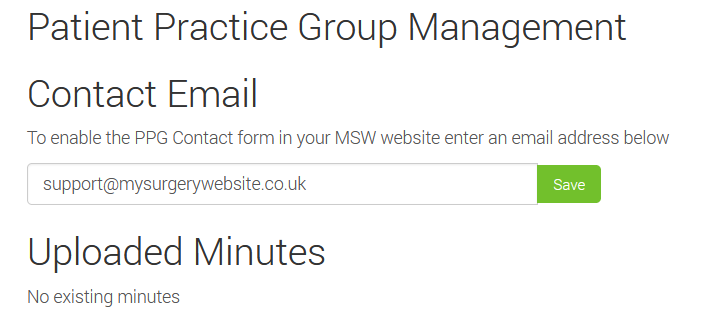
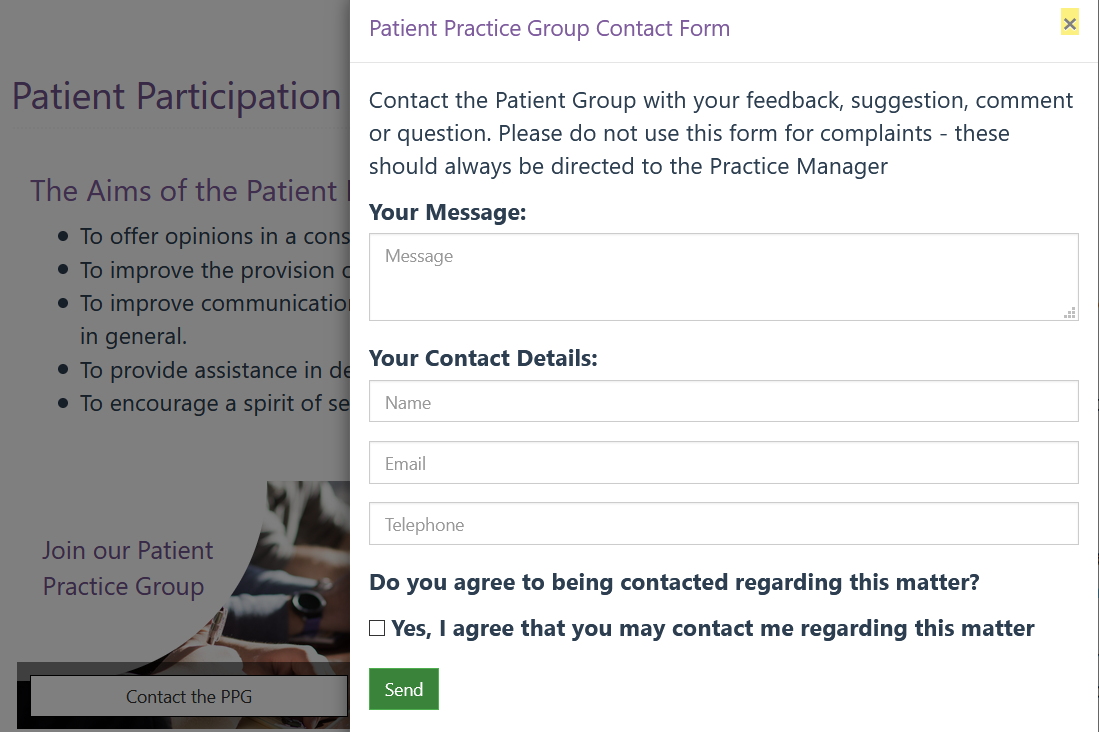
- This will enable the ‘Contact the PPG’ link and form on the PPG widget and receive any submitted Contact the PPG forms.
Dos and Don’ts
Common Problems/Mistakes
My widget is not showing when I leave the editor.
Make sure that the “Make this widget visible?” checkbox is ticked in the properties for that widget.
Common Questions/FAQs
Related links/See Also
Using widgets
Rows and Widgets - Overview
Homepage set-up
FPMS Pro - Patient Group
Keywords/meta tags
widget, display, patient group, sign-up, PPG, form