Please note: this article is only applicable to websites built after November 2018.
This article covers how to use the Form Builder tool found in FPMS/FPMS Pro to customise and create new online forms for your website.
You will need to have subscribed to the Enhanced package to use the Form Builder tool. (Click here for pricing).
In this article:
- Considerations/Prerequisites
- Detail
- Dos and Don’ts
- Common Problems/Mistakes
- Common Questions/FAQs
- Related Articles/See Also
Considerations/Prerequisites
- Plan your form requirements before you start.
- Consider using a copy of an existing form as a base and adapting it to your needs to minimise work.
Video Tutorial
The video is broken into 2 parts:
First - How to edit a standard form and publish that to your website.
Second - How to create a new form from scratch, publish that to a new form page, and link the form via a widget.
Detail
- Log in to FPMS/FPMS Pro and go to Website Tools > Form Builder.
- You will see the list of standard forms.
- The list gives the name of the form, a description of its purpose, the type of use it is recommended for, draft or published indicator and an icon that allows you to view the form and create a copy of it.
- Below Standard forms is the list of My Forms which you can edit. You can create these from scratch or copy a standard form and edit it.
- Any form that you edit, will show at the bottom under Next "My Forms". You will find a pencil icon to access editing and a bin icon to delete it to the right.
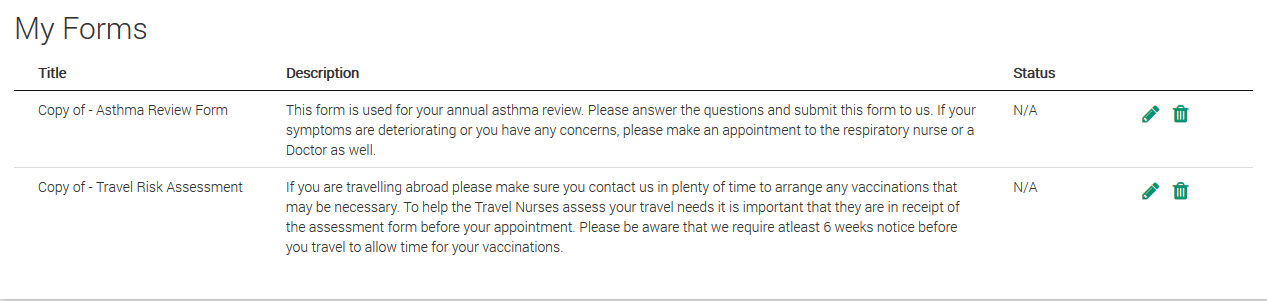
To Edit an existing "Standard Form"
- Click the pencil icon next to the form you wish to edit.
- If the form has already been published you will need to Un-publish it before you can edit it. Click the Un-publish button if this is necessary.
- You can update the form details, such as name, description and type using the fields at the top.
- Update how the form is handled by clicking Emails under the "Actions when submitted" section on the right-hand side and selected the email address that will receive the form submission notification.
- To alter any of the questions scroll down.
- The form is arranged in sections which contain questions and data fields.
- To alter a section header click the green pencil icon in the top left-hand corner of that section. Enter the new details and Save.
- To re-order the questions in the section click the green drag and drop icon in the top left-hand corner of that section. Drag and drop the questions into the required order and click Save.
- To remove the section click the green cross icon in the top left-hand corner of that section. You will be asked to confirm deletion.
- To add a new question click the green plus icon in the top left hand corner of that section. A new item will be added to the bottom of the section. Scroll down to edit it.
- Enter the text for your new question.
- Choose if an answer to this is mandatory using the "Required" checkbox.
- Set the question type: simple text, paragraph, date, choose one item, choose multiple items, drop-down list or yes/no.
- If your question type is choose one item, choose multiple items or drop-down list set the options to be chosen from by clicking the "Add option" button. You can drag and drop the options to arrange the order. To remove an option click the cross icon next to it. Click Save.
- To edit a question click the green Edit button next to a question and follow steps 11-14 above.
- To delete a question click the green Edit button then click the red Delete button and confirm.
- To add a new section click the Add section button near the top of the page. This will be added at the bottom of the form.
- To rearrange the sections click the Reorder sections button near the top of the page. You can drag and drop the options to arrange the order. Click Save.
- When you have finished use the Preview button to check that your form appears as intended.
- When you are happy with the form click the Publish button to make it available within your website.
- Login to your website and navigate to the form that you'd like to replace. For instance, if you have edited the Asthma Form, navigate to this form. Hover over the form an "Edit Form or Survey | EDIT" button will appear at the top as seen below. Click on edit.
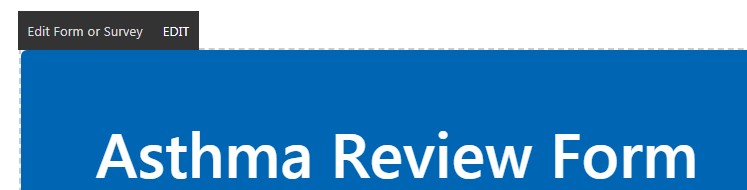
- The menu will open from the left. On the second drop-down, you will see all of the "Standard Forms", and "Your Forms" at the bottom. Select the form that you have created under "My Forms" and Press Save. The page will refresh, and you'll see your updated Asthma form which you created.
To create a new form from scratch
- If your form is similar to an existing one we recommend using that as a template by creating a copy of the existing one and then editing it as mentioned above.
- To create a new form from scratch, press the "Create New Form" button in the top-right hand corner.
- Give your form a Title and a Description (This will show at the very top of your form when patients open it).
- Use the instructions above to edit the new form.
- When you are finished click Save and Publish if you are ready to use the form. You don't have to publish the form immediately.
- The next step is to create a "Form Page" on your website
- Login to your website and select "Manage Pages" from the left.
- Press "New Page", enter a name for the page, and select "Forms" as the page type.
- Hover over "Choose Form or Survey" and select the "Edit" button which appears above.
- On the many on the left, you'll see a drop-down of all the available forms. On the 2nd field, scroll down to the bottom to see all the "My Forms" section. In here you will see any of your custom forms. Select the one you have created and press Save.
- The page will refresh, and you'll see your new form which you created.
To Delete a form
- Click the trash can icon next to the form you wish to delete.
- A message will appear asking if you are sure you wish to delete it.
- Click Confirm to delete the form or Cancel if you do not wish to delete it.
Dos and Don’ts
- Only delete a form if you are very sure you won't need it as these can not be retrieved after deletion.
Common Problems/Mistakes
I've created a new form but I can't see it when I try to add it to my website.
Check that you have published the form.
I can see the forms but I can't edit or delete them.
Check, or ask your FPMS Pro admin to check, that you have the required level of user access.
Common Questions/FAQs
How do I add my new form to my website?
See How do I add a form to my website?
Related links/See Also
How to use the form Manager
How do I add a form to my website?
How do I add a new page?
Working With Rows And Columns
Keywords/meta tags
form, builder, custom, adjust, customise, edit, create